User guide · version 2.3
Know before you hit the limit.
Everything AI Session Meter does, in the order you'll meet it — from install to forecasts, Codex, Stats, iPhone, widgets, and Apple Watch.
Step 01 · Install
One download covers every device
Get AI Session Meter on the App Store. A single listing installs the Mac menu bar app, the iPhone/iPad app, and the Apple Watch app — one purchase later unlocks all of them.
- Mac — macOS 13 (Ventura) or later
- iPhone / iPad — iOS 16 or later
- Claude Max or Pro subscription — required to read the usage endpoint; free or API-only Claude accounts can't be metered
Step 02 · Trial
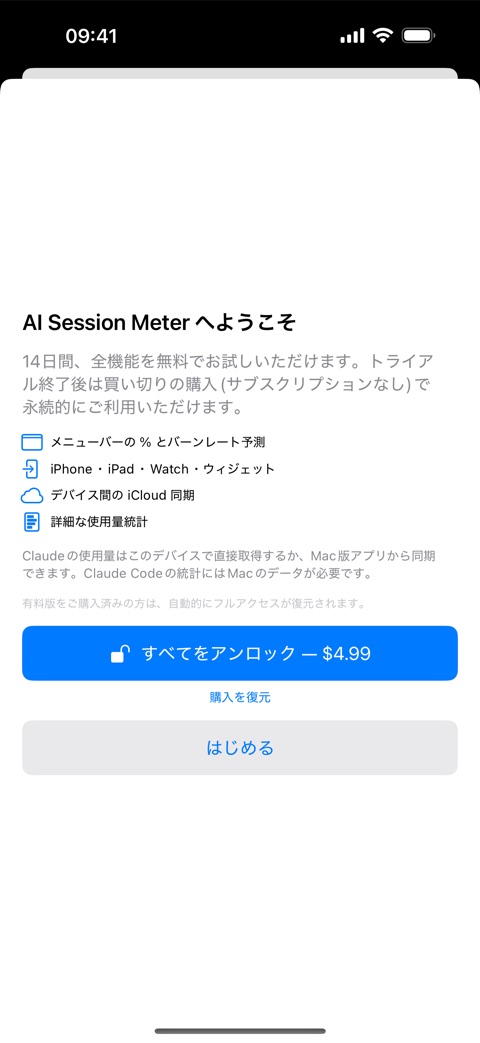
Your 14-day trial starts by itself
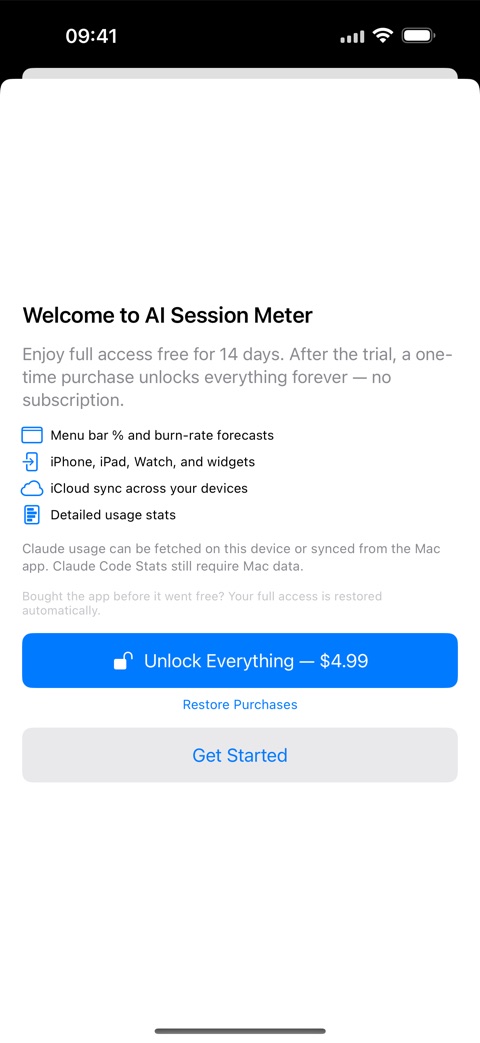
On first launch every feature is unlocked for 14 days. There is nothing to activate — the welcome screen simply tells you the trial has begun. Use the whole app: forecasts, Stats, Codex, sync, widgets, Watch.
When the trial ends, the app keeps running and shows an unlock screen instead of the meters. A one-time $4.99 purchase brings everything back permanently — no subscription (see Step 10).
Bought the app before it went free? Your full access is restored automatically — no purchase needed.
Step 03 · Connect
Connect your Claude account on the Mac
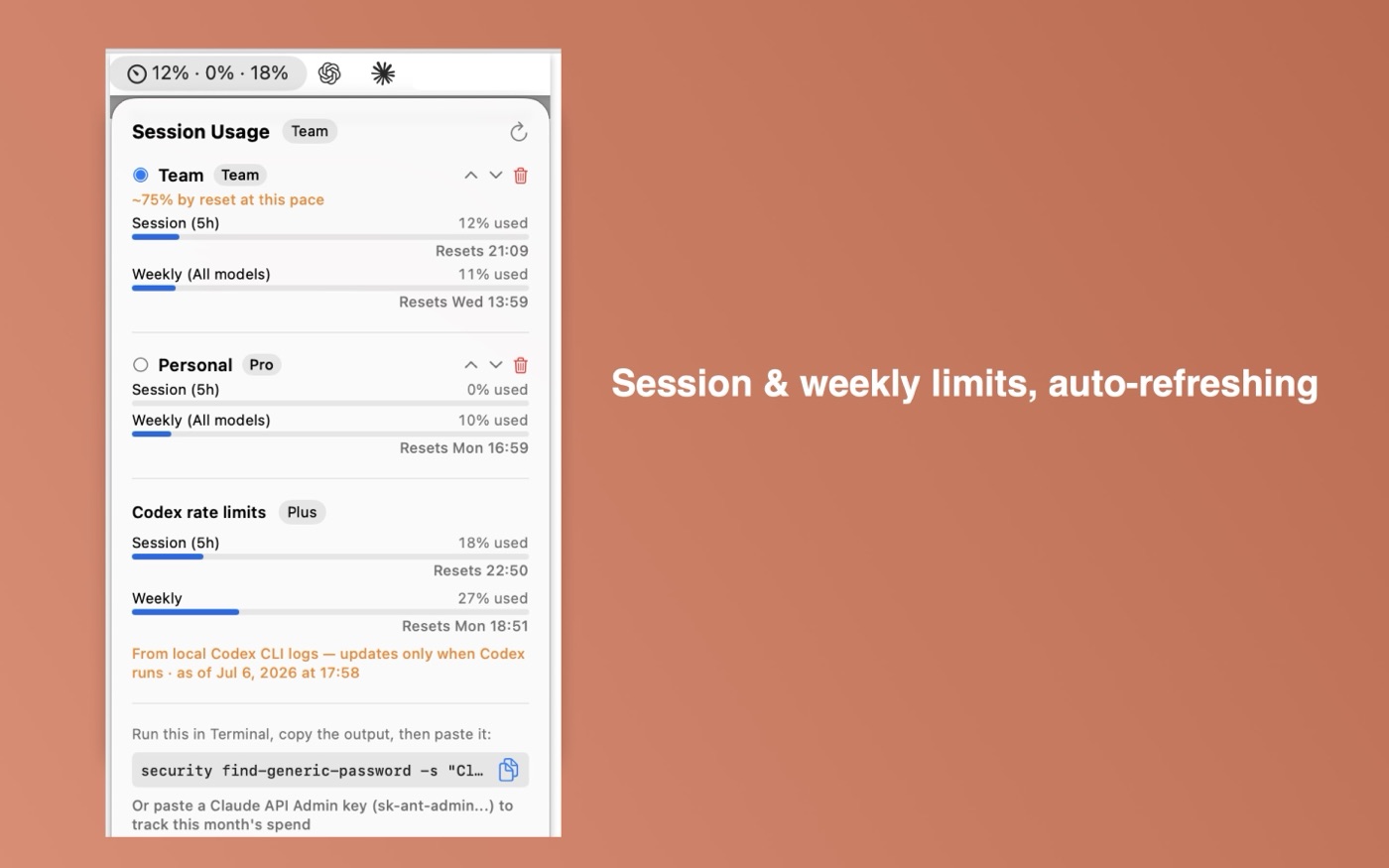
The first time you launch AI Session Meter, a setup guide opens automatically and walks you through connecting your Claude account in a couple of clicks. Click Sign in, complete Claude's sign-in in your browser, and the guide shows Claude connected once your session is live. Reopen it anytime from Setup guide… in the popover.
Connection expired? The account switches to needs reconnect — click Sign in again to restore it in a couple of clicks.
Manual setup from the Terminal
- Run
claudeonce in Terminal so a fresh session token exists. - Copy the token to your clipboard:
security find-generic-password -s "Claude Code-credentials" -w | pbcopy- Click the AI Session Meter icon in the menu bar, paste into the token field, and press Save.
- The popover shows “Authenticated (auto-refresh)” — from now on the app refreshes the token for you. You normally never paste it again.
security is Apple's signed, built-in tool. If a Keychain prompt appears, click Allow — AI Session Meter itself never touches the Keychain.
More than one account
Use Add account in the popover to track several subscriptions side by side. Each account can be renamed to a friendly alias, hidden, re-ordered, or removed — removing an account deletes its stored token from your Mac.
Optional: API spend
Paste a Claude Admin key (sk-ant-admin…) instead of a session token to track this month's API spend alongside your subscriptions.
Step 05 · Forecasts
What the forecast badges mean
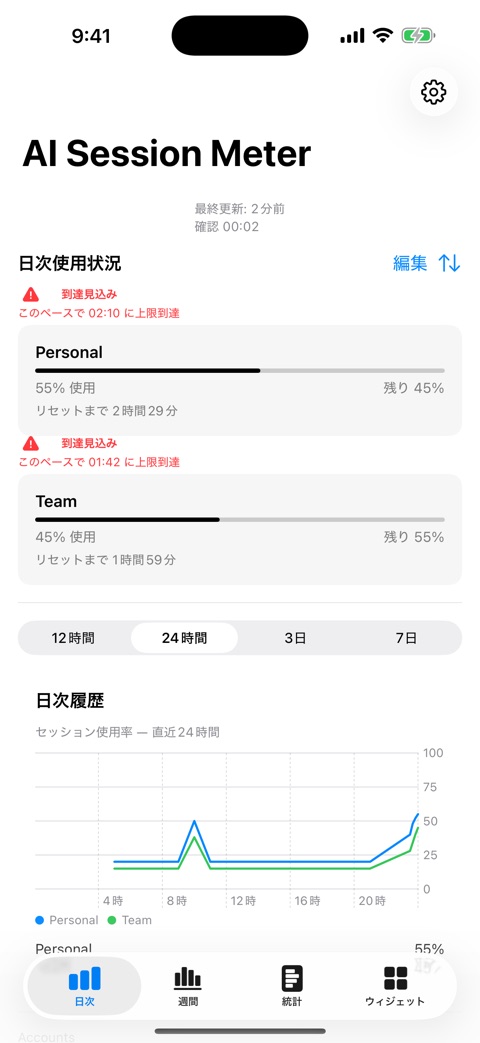
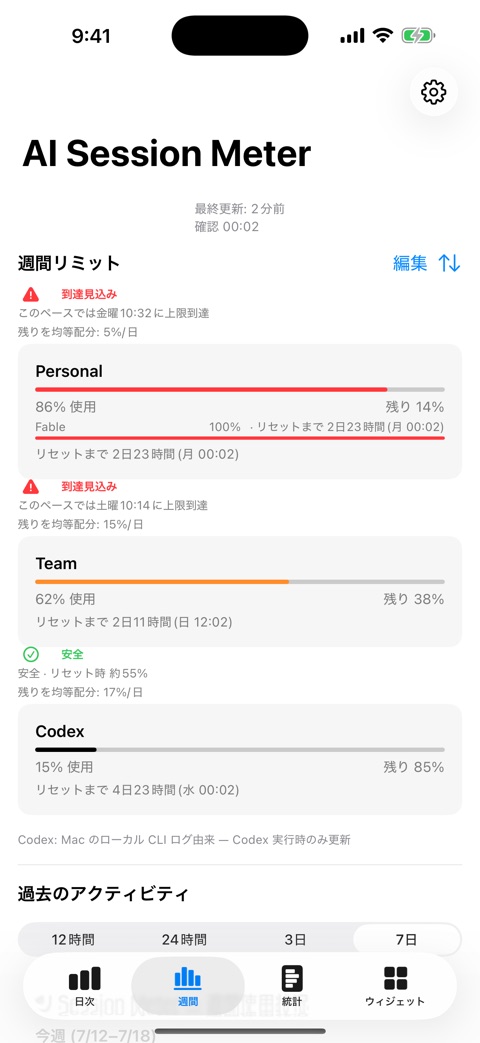
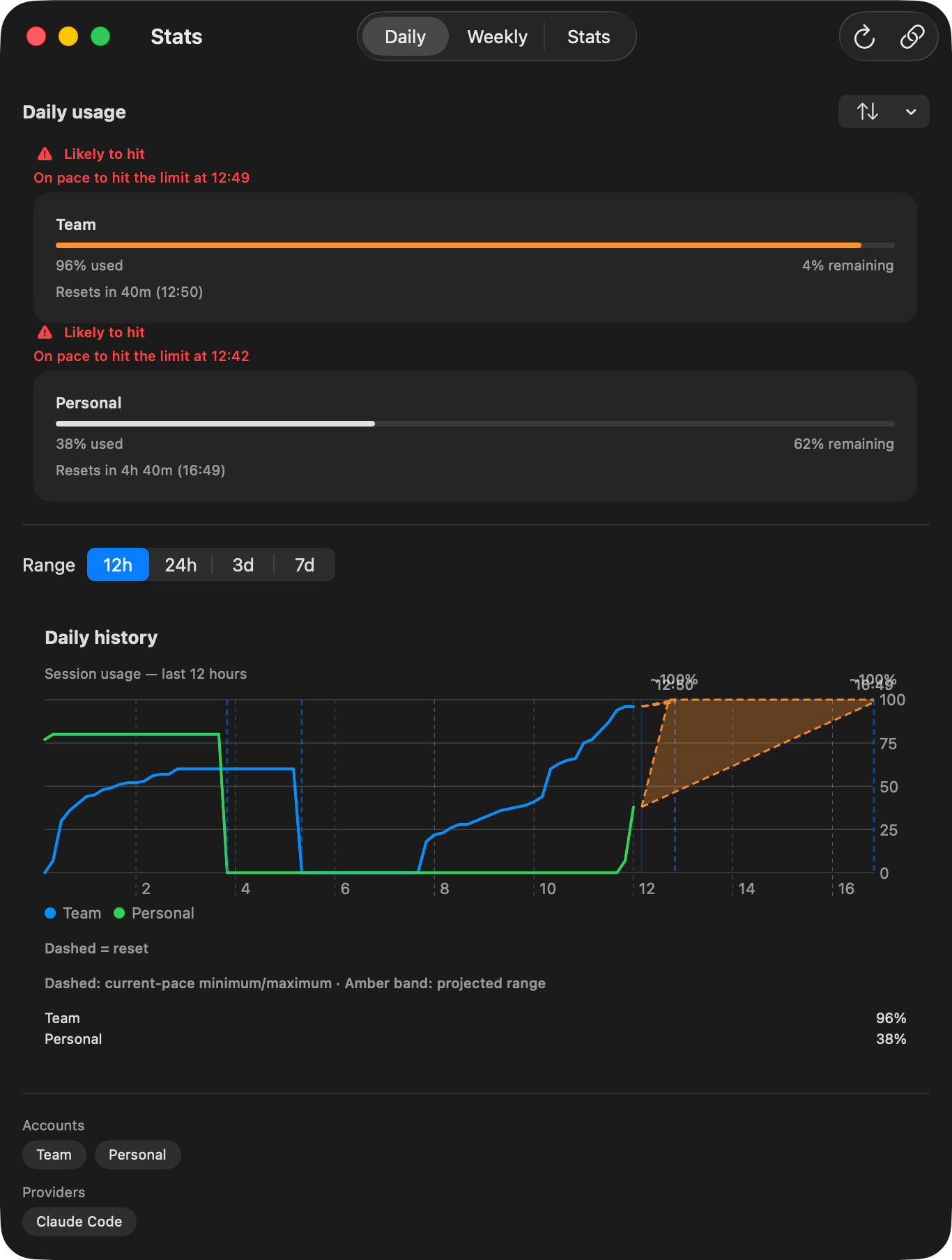
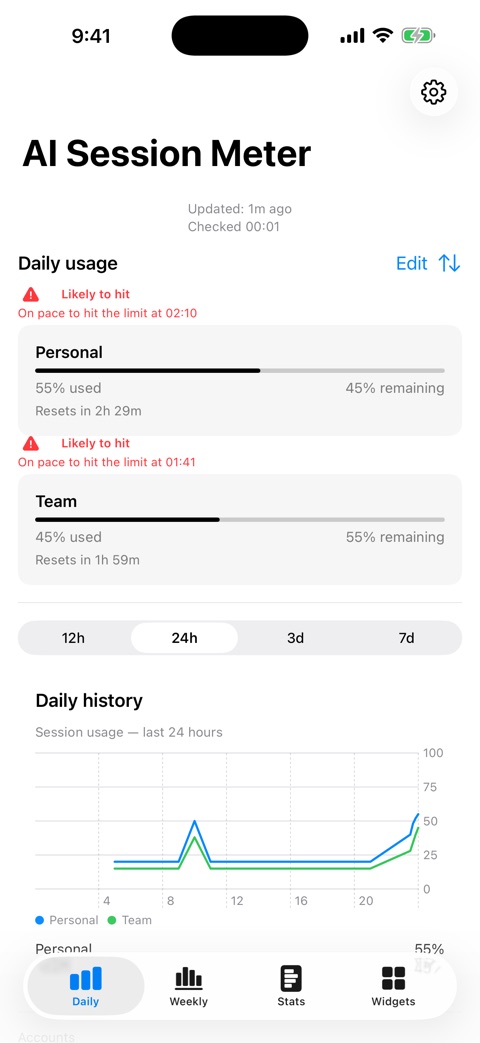
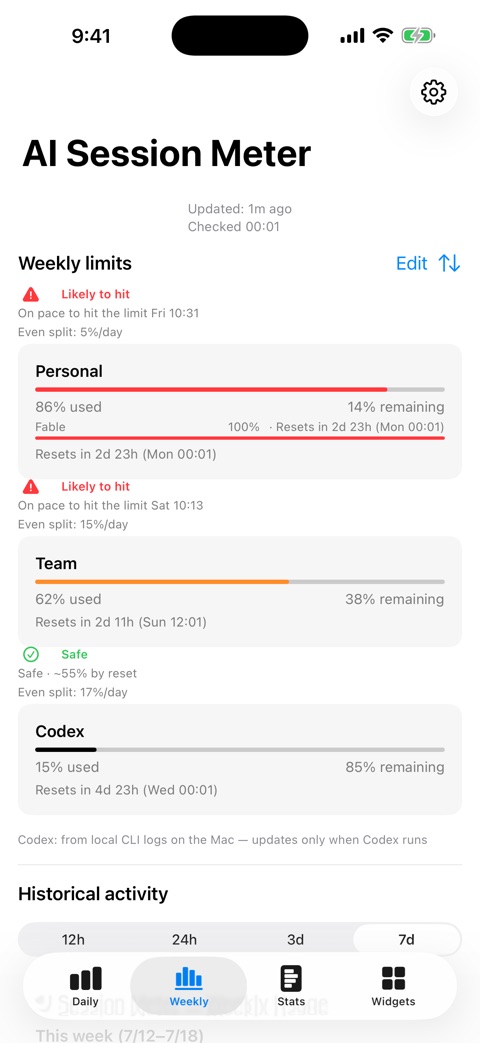
AI Session Meter measures your real recent pace instead of assuming every session behaves the same. Flat usage stays at the current percentage; increasing usage shows where you may land by reset — and a projection never drops below what you have already used.
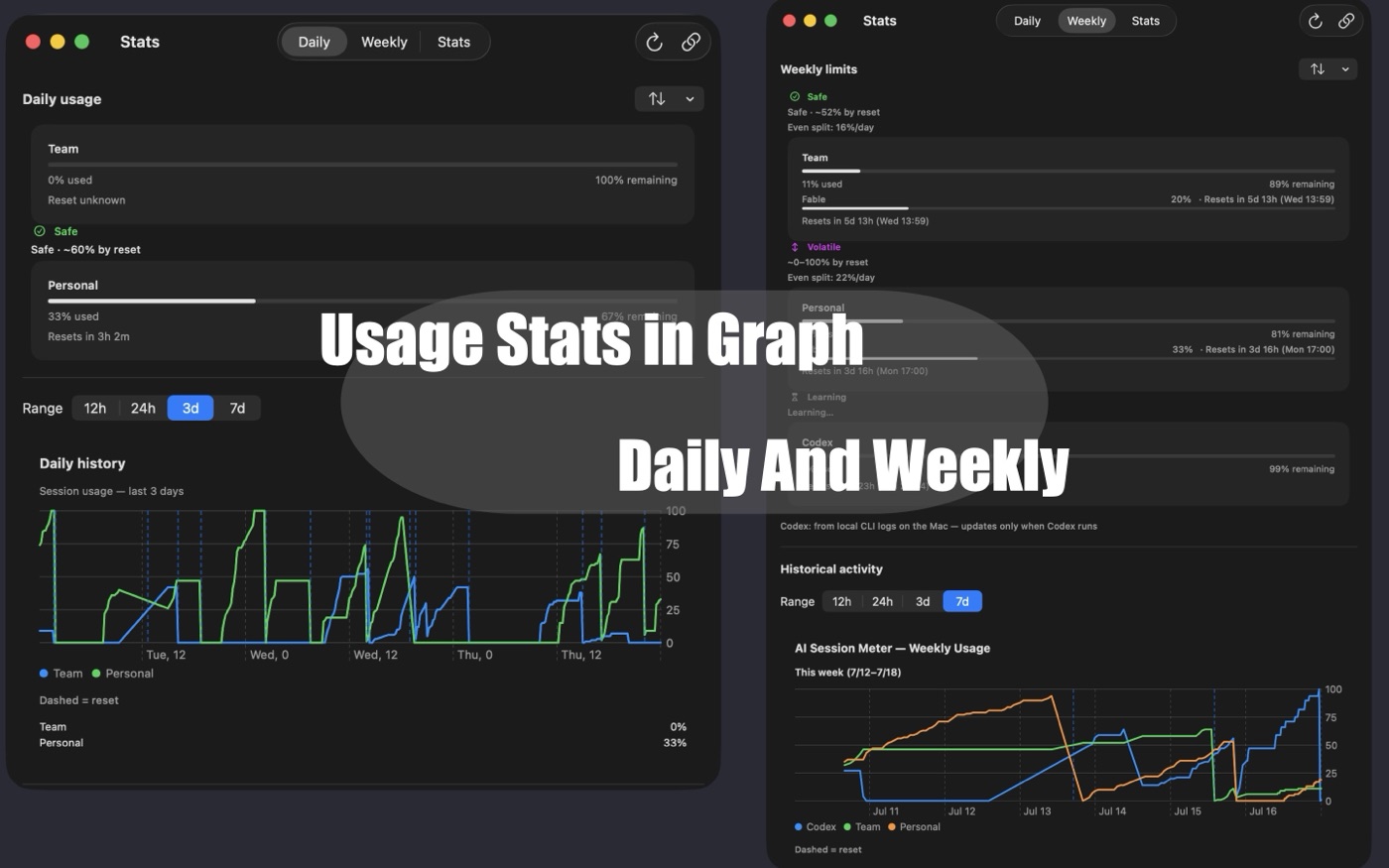
On the Daily and Weekly charts, that forecast now extends onto the graph itself: an amber band marks the range you're likely to land in by the next reset, bounded by dashed upper and lower lines. The chart's timeline stretches out to the next reset, marked with its own dashed line and clock time.
At the current pace you'll stay under the limit through the reset.
You may land near the limit — worth keeping an eye on.
On pace to reach the limit before the window resets, with the estimated time.
Not enough evidence yet — the app says so instead of claiming false precision.
Hover a reset marker on any Daily or Weekly chart — or touch it on iPhone / iPad — to see which account resets there, and whether it's the 5-hour session reset or the weekly reset.
Step 06 · Codex
Track Codex too (Mac)
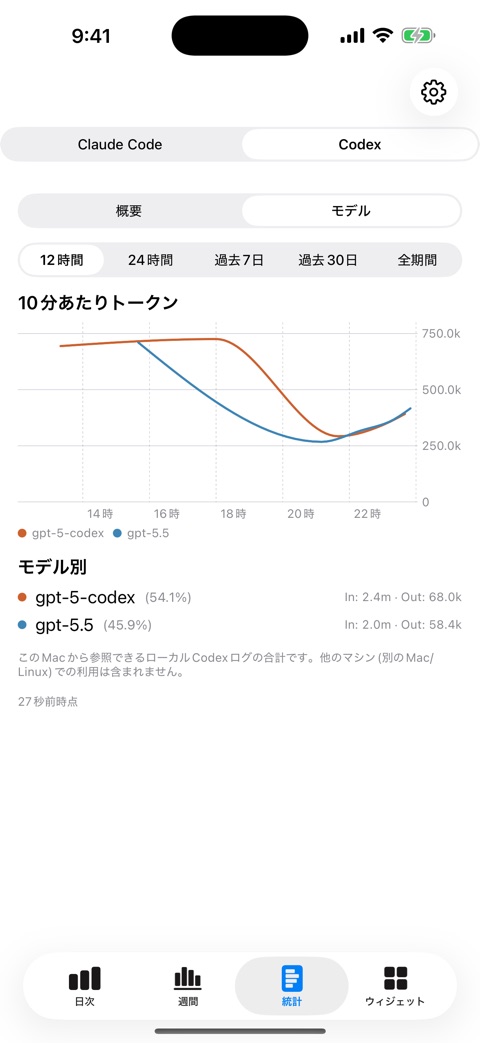
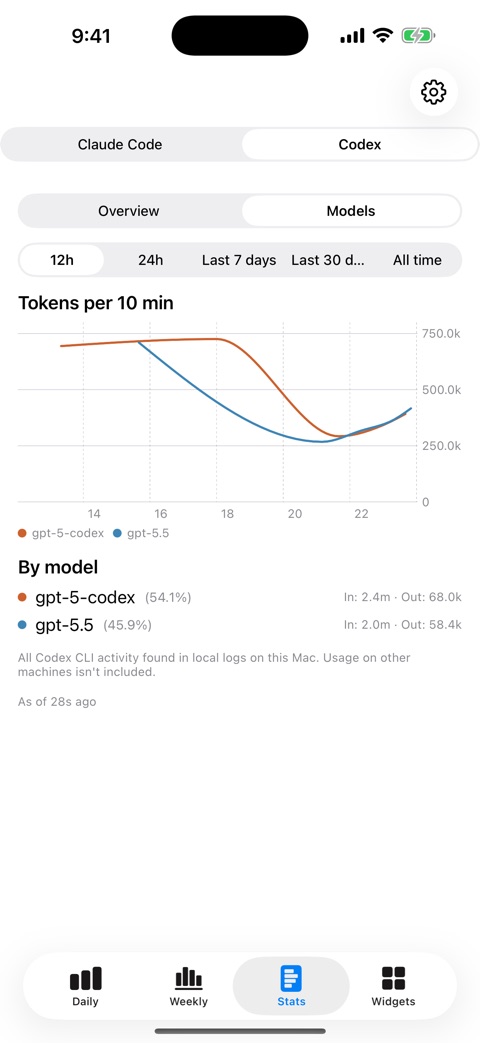
If you use the OpenAI Codex CLI, the Mac app can read its local session logs and add Codex to your meters and Stats. Nothing is sent anywhere — OpenAI provides no public usage API, so everything is computed on your Mac from files you allow.
- Default location:
~/.codex/sessions. If your logs live elsewhere, pick the folder in Settings (the app also honors theCODEX_HOMEenvironment variable). - The popover gains Codex weekly-limit rows; Stats gains a per-model Codex token view.
- Codex token counts exclude cached input, so the scale stays meaningful.
- Each reading is labeled with its source — “Live · Codex” when the Codex app server is running, “Local activity” from your CLI logs, or “Last known” for the most recent reading — so you always know how fresh the number is.
Step 07 · Stats
Explore the Stats window
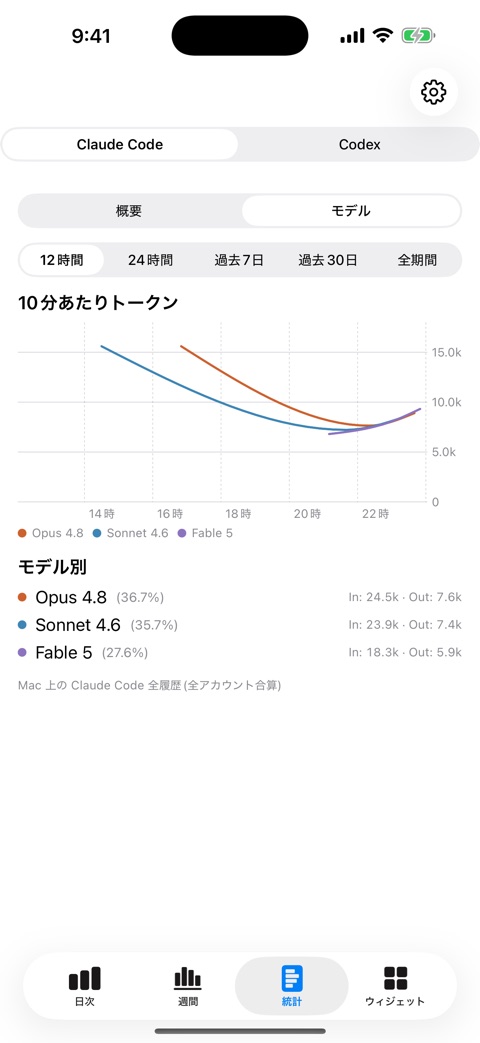
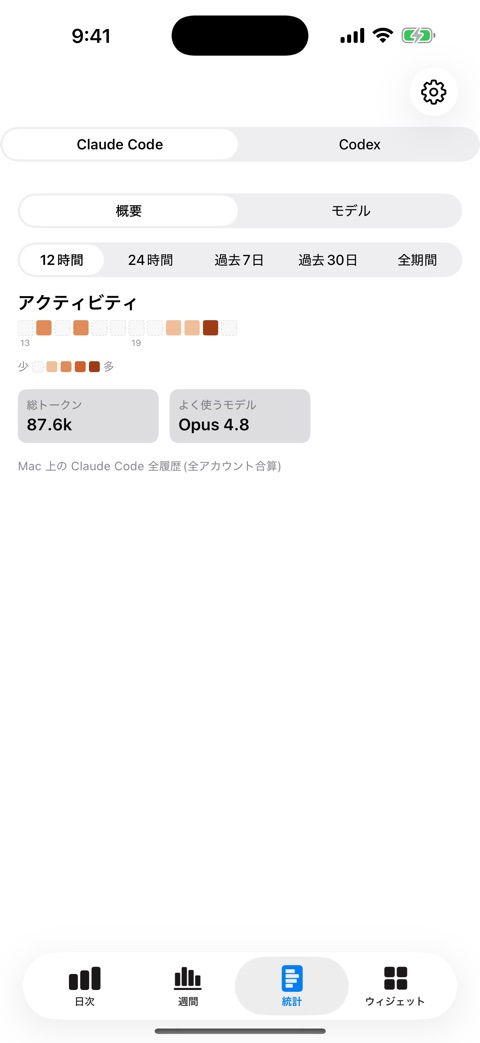
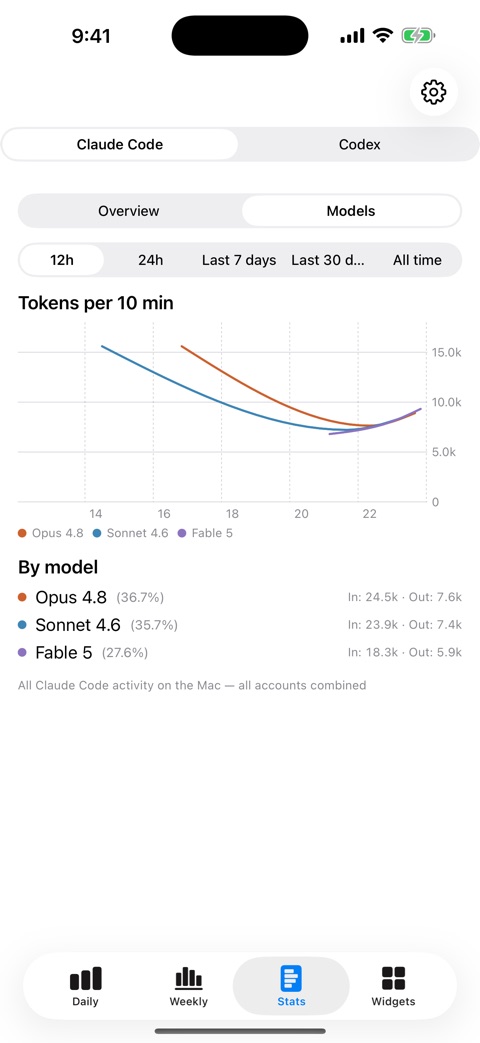
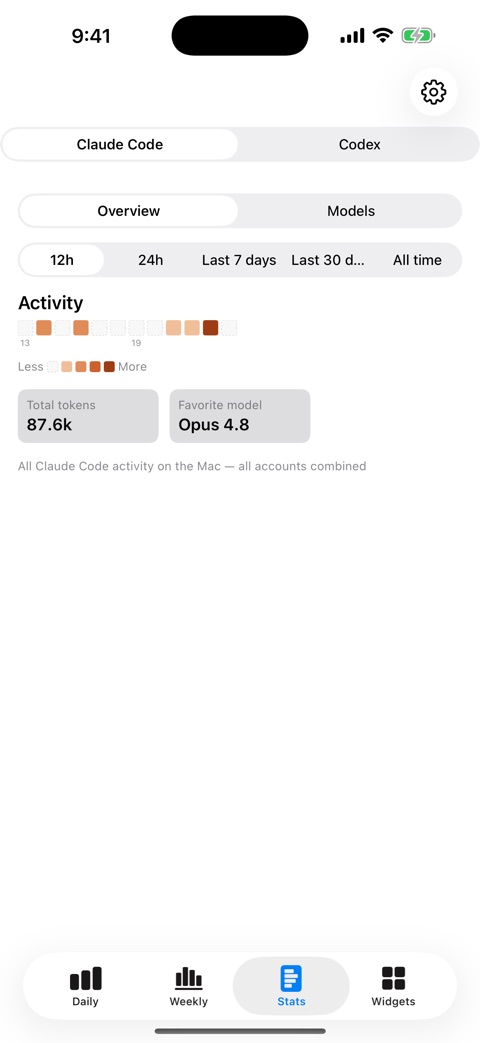
Open Stats from the popover. A provider switch at the top toggles between Claude Code and Codex; Stats remembers your last view and range.
- Daily — recent sessions with history at up to 10-minute detail.
- Weekly — the week per account and per model, with reset markers, plus a new 14-day range that adds day-level history before the recent week. Hovering the chart now includes the date too, for example “Wed Jul 22 15:00”.
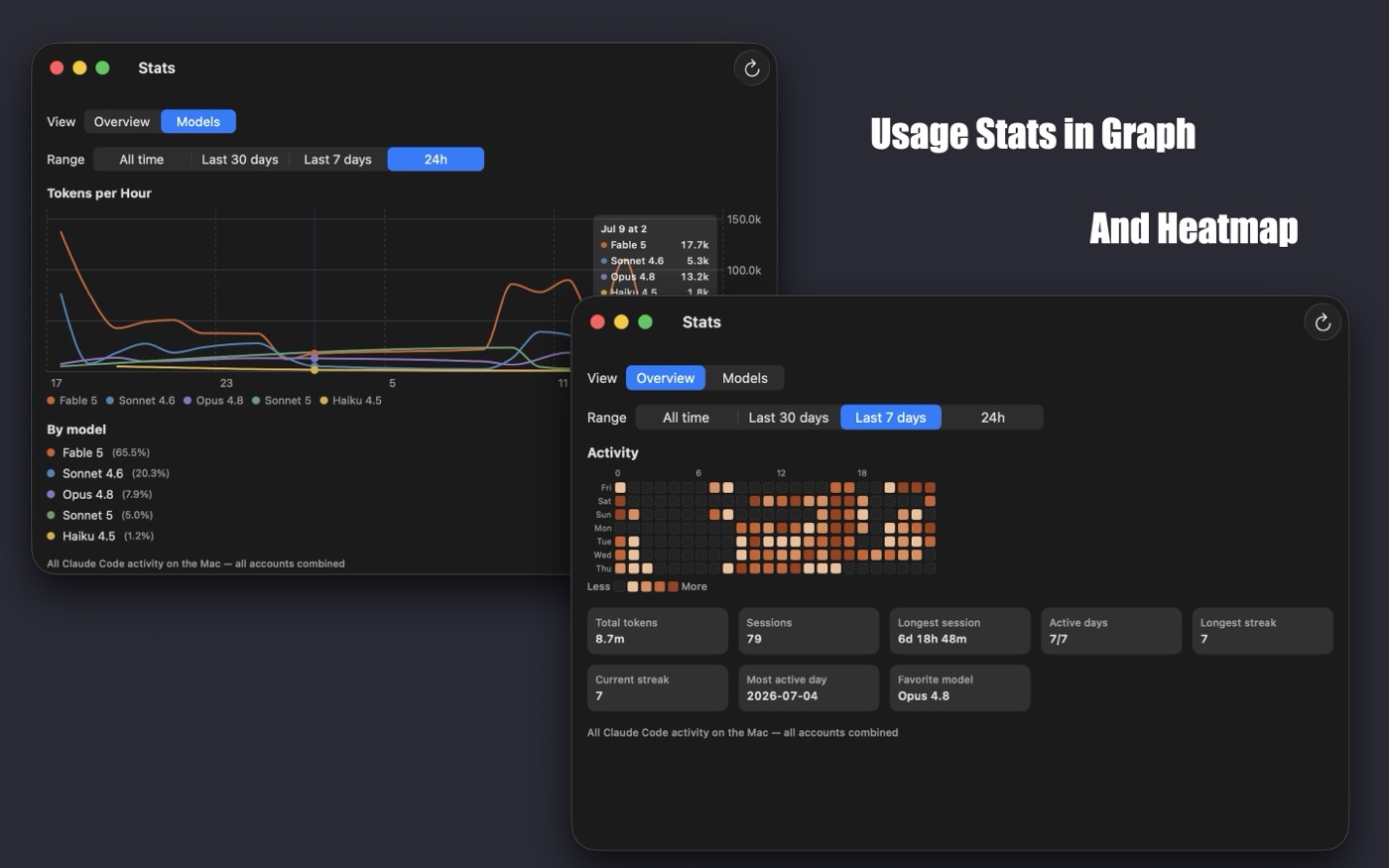
- Overview — an activity heatmap plus totals: tokens, sessions, streaks.
- Models — token usage broken down by model over 12-hour, 24-hour, 3-day, and 7-day ranges — on the Mac, all the way to all time. Hover a reset marker on this chart to see its kind and time (session or weekly) — account names aren't shown here, to keep your synced history compact.
Merging an account's history
If the same account shows up under an old name (for example after deleting and re-adding it), use the link button in the Stats toolbar to merge the historical identity into the current one. Merging never rewrites history — it only groups it — and can be undone with Separate.
Step 08 · iPhone & iPad
Take it with you
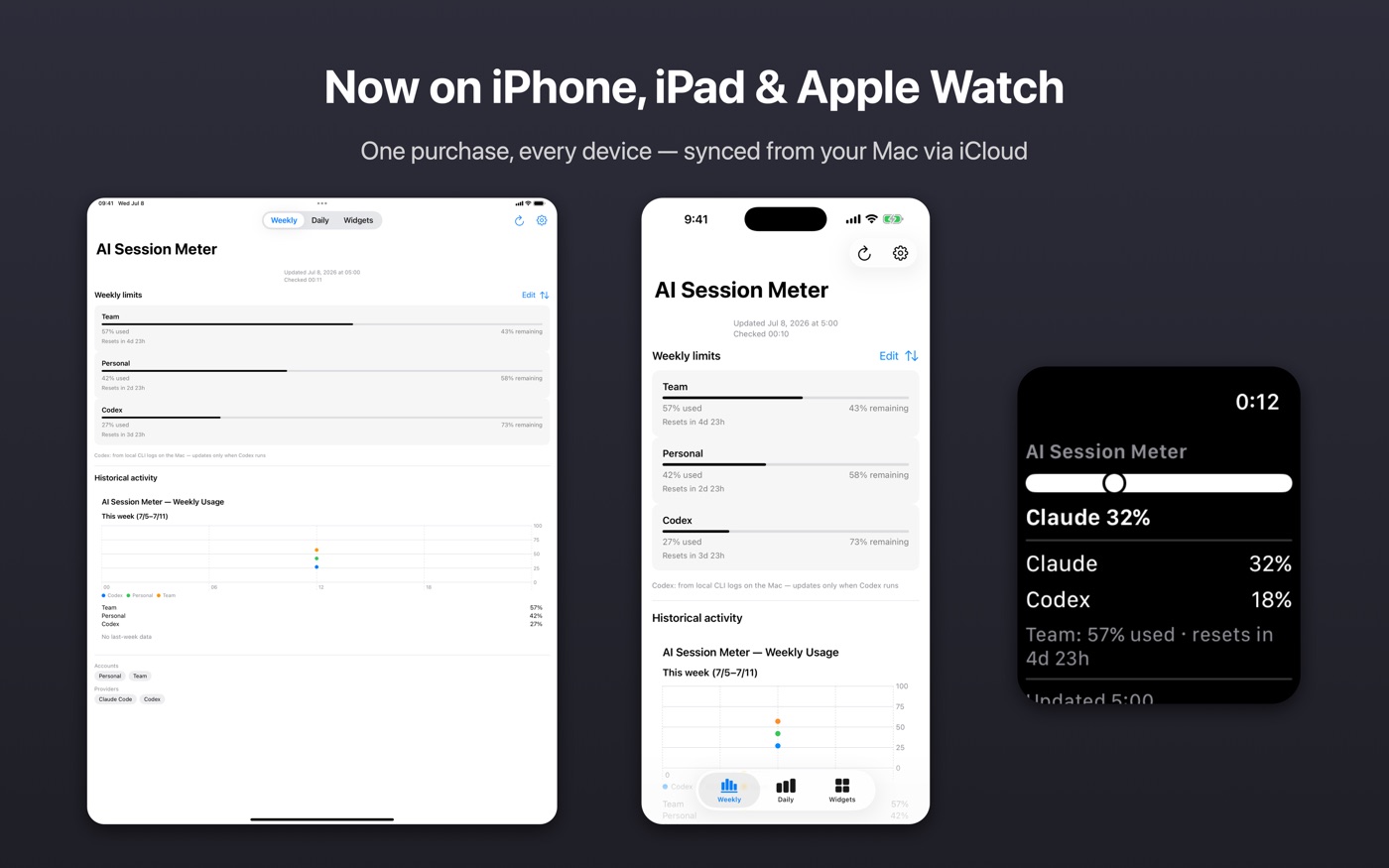
There are two independent ways to get data on iPhone or iPad — use either, or both:
- Sign in on the device. In the app's Settings, connect your Claude account to fetch live session and weekly usage right on the phone — no Mac required.
- Sync from your Mac. Sign in to the same iCloud account on both devices and keep the Mac app running. Your recorded history, forecasts, and Codex stats appear automatically.
Codex stats and long history always come from the Mac via iCloud sync — the phone can't read CLI logs. Until real data arrives, the app shows a clearly-labeled sample data banner so you can explore the screens; it disappears on its own (or tap Hide).
Step 09 · Widgets & Watch
Widgets and Apple Watch
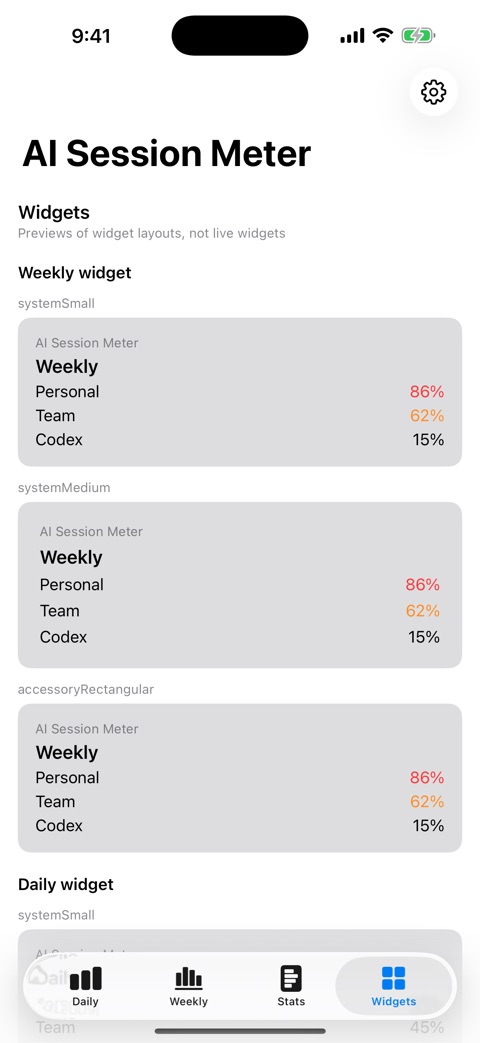
Home Screen widgets
- Touch and hold the Home Screen, then tap the Edit / + button.
- Search for AI Session Meter.
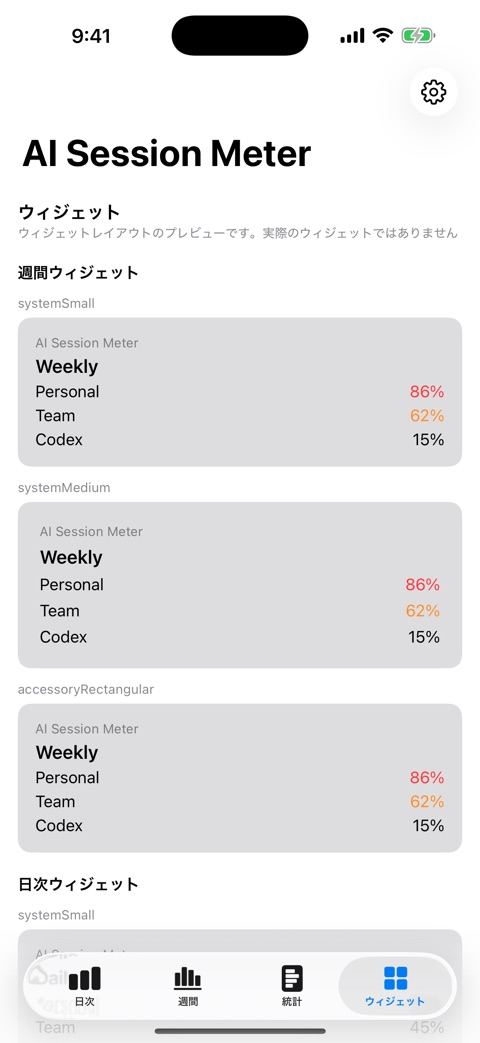
- Choose a Daily or Weekly widget in the size you like.
The app's Widgets tab previews every layout before you commit.
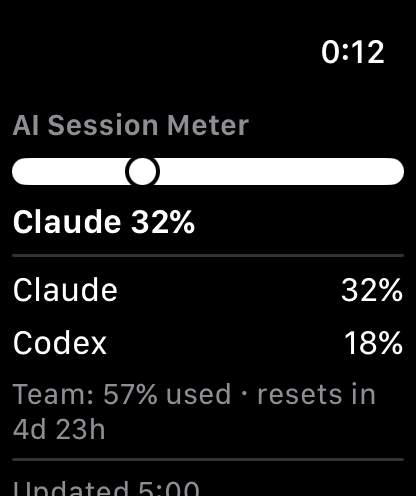
Apple Watch
The Watch app shows your current session and weekly limits at a glance, and a watch-face complication keeps the number one raise-of-the-wrist away. The Watch displays history recorded by your iPhone and Mac — it never connects to an AI service itself.
Step 10 · Unlock
Unlock everything, once
After the 14-day trial, a single $4.99 purchase — Unlock Everything — restores every feature permanently on all your devices. It's a one-time purchase, not a subscription.
- Where: the unlock screen that appears after the trial, or Settings on Mac and iPhone at any time.
- Restore Purchases — reinstalling, or setting up a new device? Tap Restore and your purchase comes back through your Apple account.
- Previous paid-era customers — if you bought the app before it went free, full access is restored automatically.
Reference · Troubleshooting
When something looks wrong
“Token expired” or an auth error
Run claude once to mint a fresh session, copy the token again with the command in Step 03, and paste it via Update token in the popover.
It says I need a Claude Max / Pro subscription
The usage endpoint only exists for Max and Pro subscriptions. Free or API-only accounts can't be metered.
HTTP 429 errors
The usage endpoint throttles aggressive polling. The app waits out the server's Retry-After (plus a safety margin) and recovers on its own.
The iPhone app shows no data
Either sign in on the device (Settings → connect your Claude account), or check the sync path: same iCloud account on both devices and the Mac app running. Codex stats and long history only arrive via the Mac.
I still use an old DMG install
Public DMG distribution has been discontinued. Existing installs keep working but no longer receive updates — install from the Mac App Store to stay current.
A note on reliability: the app reads a private usage API and local CLI files. A provider-side change at Anthropic or OpenAI can break metering until an app update ships.
Still stuck? Email [email protected] — or see the Support page.
Reference · Privacy
Private by design
- The app never calls an AI model and never consumes your usage quota.
- Your credential stays on your devices and is sent only to Anthropic's official servers.
- No analytics, no tracking, no ads. Sync uses only your own iCloud account.
Full policy: Privacy Policy.